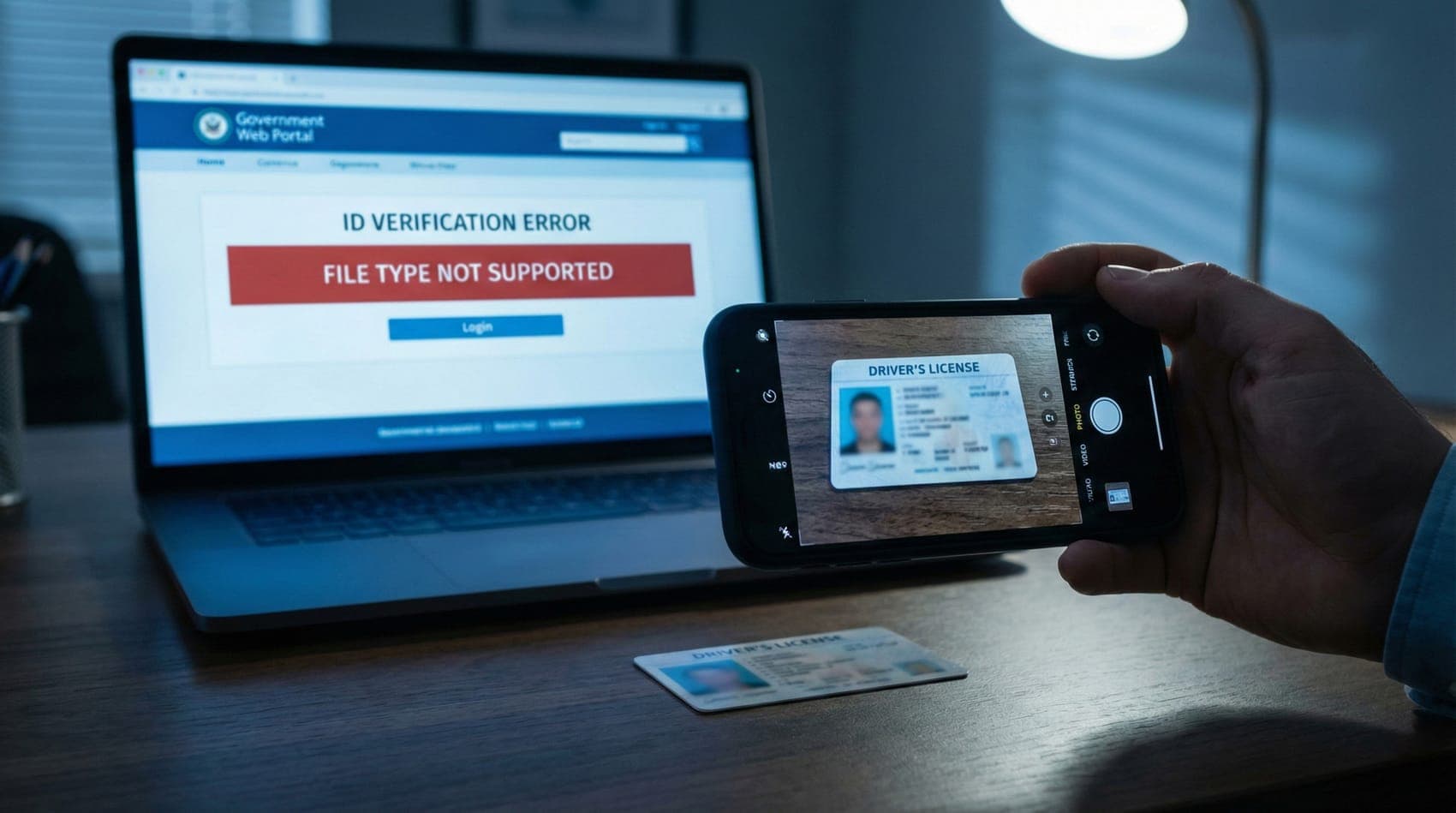
You are staring at your screen. The clock is ticking. You are five minutes away from finishing your tax return, accessing your veteran benefits, or renewing your driver's license. You’ve done the hard work. You’ve filled out the forms. The final step is simple: "Upload a photo of your Driver's License or Passport."
You snap a clear, perfect picture with your iPhone. You hit upload. You wait a few seconds, expecting a green checkmark.
Instead, you get a red error message. Maybe it says "Invalid file format." Maybe it says "We couldn't read your document." Or perhaps it just says "Upload failed."
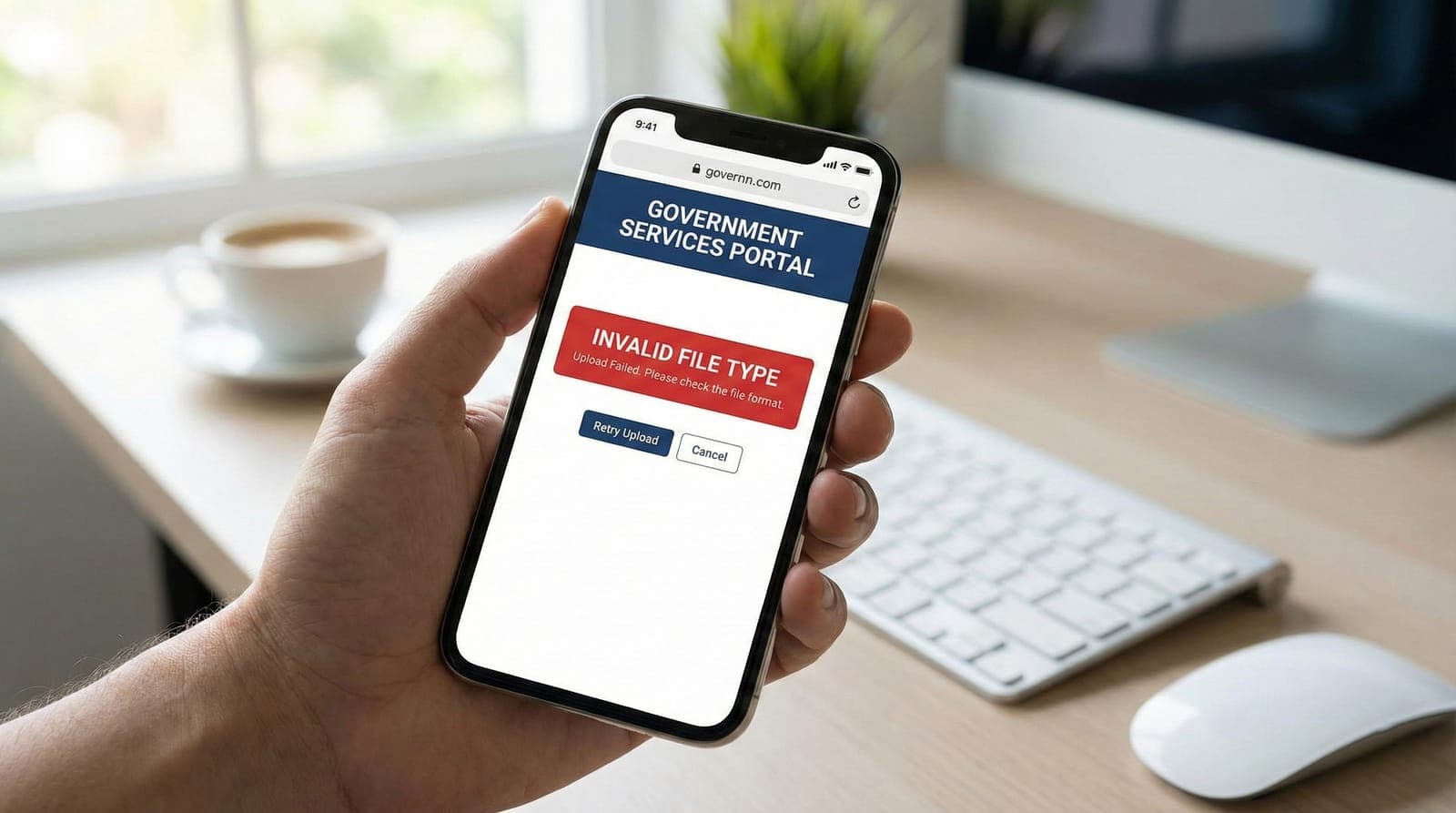
You try again. Same error. You try taking a screenshot. Rejected. You try emailing it to yourself. Rejected. Suddenly, a simple task has turned into a panic-inducing technical nightmare. You aren't alone in this. This is one of the most common—and stressful—interoperability crises facing US citizens today.
The problem isn't your ID. It isn't your camera quality. And it (probably) isn't your internet connection. The problem is a silent conflict between Apple's modern technology and the government's legacy infrastructure.
🚨 STOP: Read This Before You Google 'Free Converter'
Your instinct is to search for a free online tool to fix the photo. Do not do this yet. Your Driver's License contains your full name, address, birth date, and ID number. Uploading this to a random 'free converter' website is a massive identity theft risk. This guide will show you how to fix the problem without sending your ID to a stranger's server.
The Core Problem: Why Government Portals Hate Your iPhone
To understand why this is happening, we need to look at the file format your phone is using. Since 2017, iPhones have saved photos as .HEIC files by default. This stands for High Efficiency Image Coding.
Apple loves HEIC because it is brilliant at compression. It keeps your photos looking sharp while using half the storage space of a standard JPEG. For storing memories of your kids or your pets, it is perfect. But for the web? It is a disaster.
Most government websites, including ID.me, Login.gov, the IRS, and the VA, were built on older architecture. Their internal systems—specifically the Optical Character Recognition (OCR) bots that read your ID—are trained to recognize two main formats: JPEG and PNG. When you upload a HEIC file, their servers literally do not know how to decode the image data. They see it as 'garbage data' and reject it immediately.
The "Silent" Failure
The worst part isn't the rejection; it is the lack of communication. Most of these portals do not say "Please convert your HEIC file to JPEG." They just give you a generic error code. This leads users to believe their photo is blurry, or their ID is expired, or the system is down. In reality, it is just a file extension mismatch.
Quick Compatibility Check
| Platform | HEIC Support? | PDF Support? | Accepted Formats |
|---|---|---|---|
| ID.me (Self-Service) | ❌ NO | ❌ NO | JPG, PNG |
| ID.me (Video Call) | ❌ NO | ✅ YES | JPG, PNG, PDF |
| Login.gov | ❌ NO | ❌ NO (Photo Tool) | JPG, PNG |
| FinCEN ID | ❌ NO | ✅ YES | JPG, PNG, PDF |
| USCIS | ❌ NO | ✅ YES | JPG, PNG, PDF, TIF |
As you can see, HEIC is universally rejected. Even worse, if you try to be clever and scan your ID as a PDF using your iPhone's Notes app, you might still get rejected if you are using the ID.me self-service portal, which strictly requires image files.
The "Panic Cycle" and Safety Risks
We need to talk about safety before we talk about the fix. When users get blocked from their benefits, they panic. They search for "convert heic to jpg" and click the first link that appears. This is dangerous.
The Metadata Trap
When you take a photo with your iPhone, that file contains more than just the image. It contains EXIF Metadata. This includes the exact time the photo was taken, the phone model, and—most critically—the precise GPS coordinates of where you were standing. when you upload that photo to a generic cloud converter, you are handing over:
What you give away to cloud converters:
A high-resolution image of your face (Biometric data).
Your full legal name and address (Identity data).
Your Driver's License number (Financial data).
Your exact GPS location (Physical security risk).
Many free converter sites have privacy policies that allow them to harvest this data or disclaim all liability if they get hacked. For a sunset photo, this might be fine. For your federal identity documents, it is unacceptable.
The Safe Solution: Local (No-Upload) Conversion
The only safe way to convert an ID document is to ensure the image never leaves your device. You need a tool that runs directly in your web browser using your phone's own processor, rather than sending the file to a cloud server.
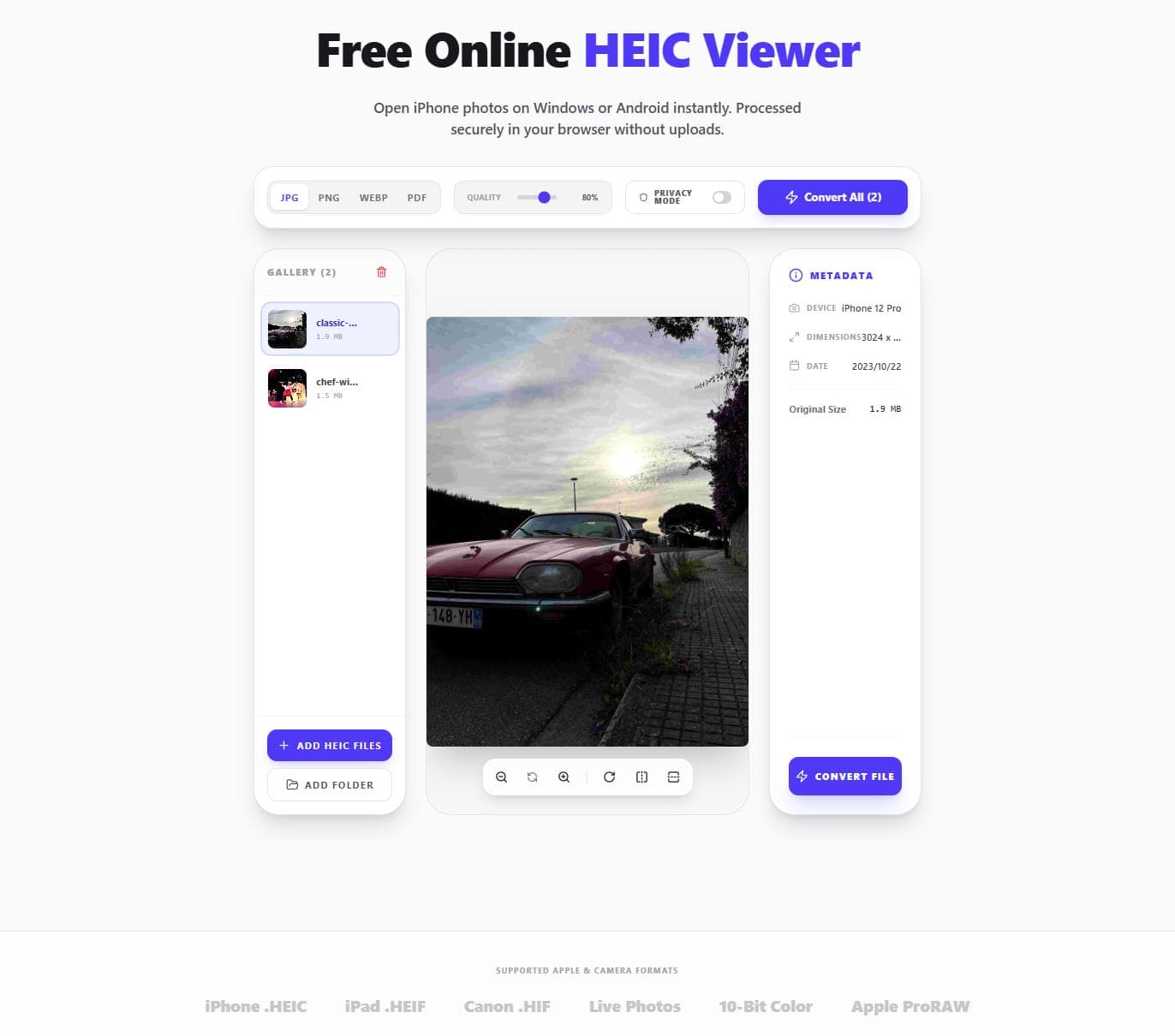
This is why we built OpenHEIC. It uses a technology called WebAssembly to perform the conversion right on your phone or computer. You could essentially load the page, turn on Airplane Mode, and it would still work. Zero data leaves your control.
Step-by-Step: Fixing the ID.me Error
If you are stuck on the ID.me verification screen, follow these steps to generate a safe, compatible JPG.
How to fix ID.me uploads:
Step 1: Open the HEIC to JPG Converter in Safari or Chrome on your iPhone.
Step 2: Tap the upload area and select 'Photo Library'. Choose your ID photo.
Step 3: Wait a moment for the local conversion to finish. It usually takes less than a second.
Step 4: Tap Download. The file will save to your 'Files' app or 'Downloads' folder as a standard .JPG.
Step 5: Go back to the ID.me tab. When it asks for the file, choose 'Browse' or 'Choose File' and select the new JPG you just downloaded.
This file is now a standard, 8-bit image that the ID.me verification bots can read easily. It strips away the complex HEIC container while keeping the image clarity you need for verification.
Platform-Specific Nightmares: Login.gov
If you are using Login.gov (for USAJOBS, TSA PreCheck, or Small Business loans), the rules are even stricter. Login.gov has a security feature called 'Rate Limiting' that can ruin your day if you aren't careful.
⚠️ The 6-Hour Lockout Rule
Login.gov allows a maximum of 5 failed upload attempts in a 6-hour window. If you try to upload your HEIC photo 5 times in a row hoping it will 'just work,' you will be locked out of your account for 6 hours. Do NOT brute force it.
Login.gov also has a strict file size limit. Generally, files must be under 10MB. However, some specific agencies using Login.gov, like FinCEN, have a much tighter limit of 4MB. An iPhone HEIC photo converted to a high-quality PNG can easily exceed 10MB, causing a "File too large" error.
The Fix for Login.gov
For Login.gov, we recommend converting to JPG (which is smaller than PNG) to stay safe on file size. If you have already converted to PNG and it's too big, simply run it through our HEIC to JPG tool again, which optimizes the compression.
Why "Screenshots" Are a Bad Idea
A common workaround users try is to open the photo on their screen and take a screenshot of it. Since screenshots save as PNGs, this technically bypasses the file format check. However, this often leads to a different rejection: "Image resolution too low" or "Potential fraud detected."
Here is why screenshots fail verification:
The Screenshot Problem:
Resolution Loss: A screenshot captures the screen resolution, not the full camera sensor resolution. When the agent zooms in to check the microprint on your license, it looks pixelated.
Metadata Stripping: Fraud detection AI looks for camera metadata to prove the photo is 'real' and not a Photoshop job. Screenshots strip this data.
Liveness Artifacts: A screenshot of a photo looks 'digital' to the AI, which may flag it as a fake document.
It is always better to convert the actual file than to take a picture of a picture.
3 Alternative "Offline" Methods (No New Apps)
If you don't want to use a web-based converter, there are a few "hidden" tricks inside your iPhone that can force a conversion. These are great for privacy, though they are a bit clunky to perform.
Method 1: The "Files App" Trick
This is the "Gold Standard" for native conversion. It uses iOS's own file system to force a change from HEIC to JPEG.
How to do it:
Open your Photos app and tap on your ID photo.
Tap the Share button (box with an arrow) and choose "Copy Photo".
Now, go to your home screen and open the Files app.
Navigate to "On My iPhone".
Long-press on any empty white space and tap "Paste".
The Magic: iOS will paste the image, but it will automatically convert it to a JPEG file to ensure compatibility.
You can now upload this file from the "Browse" menu in Safari instead of the Photo Library.
Method 2: The Email Loop
This is a classic workaround, but you have to be careful with the settings.
The Email Method:
Open the photo and email it to yourself using the Apple Mail app.
When you hit send, a menu will pop up asking about image size.
CRITICAL: You must select "Actual Size". If you choose Small, Medium, or Large, the image will be compressed too much and ID.me will reject it for being blurry.
Open your email on your computer or phone and download the attachment. It will be a JPEG.
Method 3: Change Camera Settings (For Future)
If you want to prevent this from ever happening again, you can tell your iPhone to stop using HEIC entirely. However, this will double the storage space your photos take up.
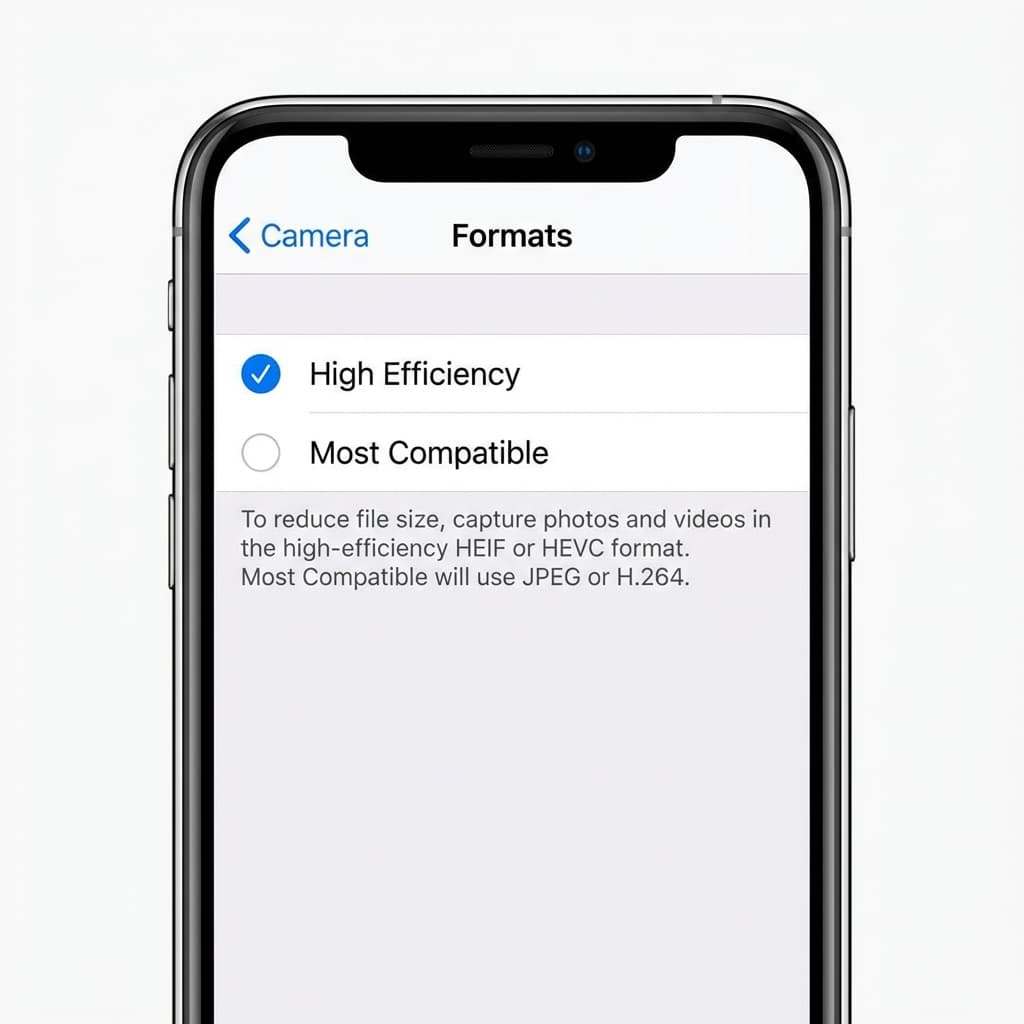
Disable HEIC:
Go to Settings > Camera.
Tap Formats.
Switch from "High Efficiency" to "Most Compatible".
Note: You must also turn off "Live Photos" in the camera app (the circle icon in the top right). ID.me hates Live Photos.
Advanced Troubleshooting: Windows Desktop Uploads
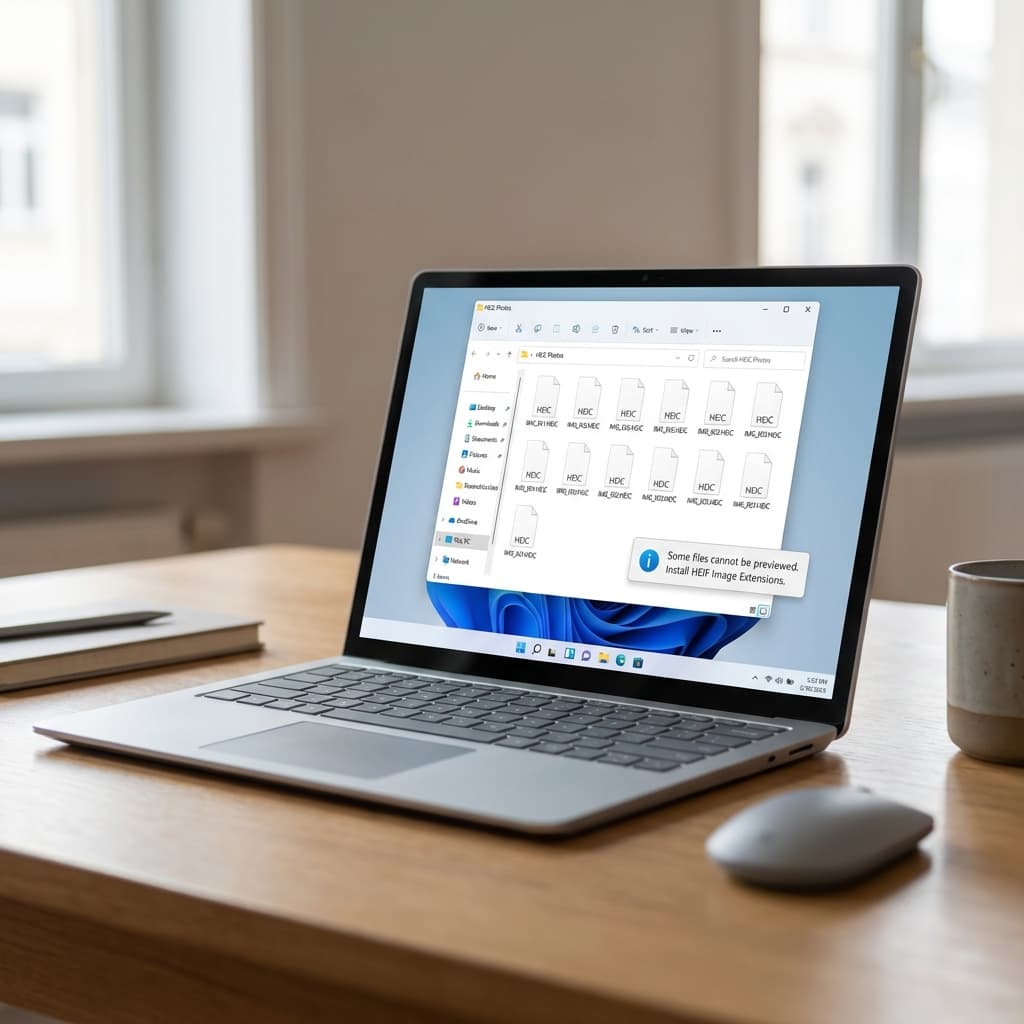
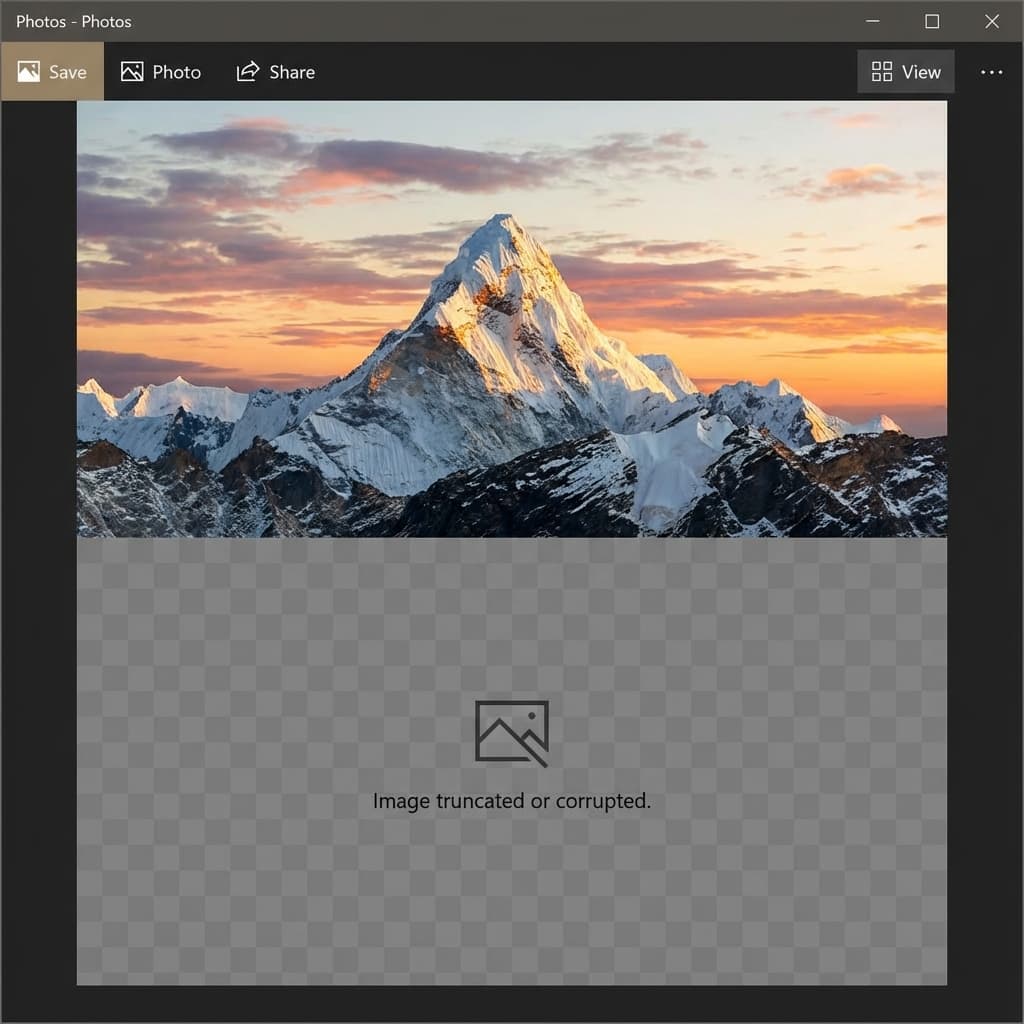
Many users try to transfer the photo to their Windows computer first, thinking it will be easier to upload from a desktop. This often leads to the "Black Screen" or "Grey Box" error.
If you plug your iPhone into a PC and drag the photos over, you might see a file that looks half-loaded—the top is visible, but the bottom is a solid grey block. This is a "transfer corruption" error. It happens because the iPhone is trying to convert the HEIC to JPEG in real-time over the USB cable, and the processor gets overwhelmed.
To fix this on Windows, you have two options. You can use our Windows Troubleshooting Guide to enable native HEIC viewing on your PC. Or, you can use the Bulk HEIC Converter to fix the files on your desktop before trying to upload them to the government portal.
Summary: Your Verification Checklist
Getting verified on ID.me or Login.gov is stressful enough without fighting file formats. Here is your final checklist to ensure a smooth upload:
Pre-Upload Checklist
Format: Ensure the file is JPG or JPEG. (Use OpenHEIC to be sure).
Size: Ensure the file is between 2MB and 10MB.
Live Photos: Ensure this feature was OFF when you took the picture.
Lighting: No glare on the plastic ID card (use natural window light, no flash).
Background: Place the ID on a dark table for high contrast.
By converting your file locally and ensuring it meets these standards, you can bypass the automated rejection bots and get your verification approved on the first try.
Frequently Asked Questions (FAQ)
Q: Why does ID.me say "We couldn't read your document"?
This generic error often means you uploaded a Live Photo or a PDF to the self-service portal. ID.me's automated system struggles with the video data in Live Photos. The fix is to convert the image to a static JPEG using our converter tool.
Q: Can I use a PDF for my Driver's License?
It depends on the portal. ID.me Self-Service generally rejects PDFs and demands image files. However, if you are routed to a Video Call Referee, they can accept PDFs. Login.gov also prefers images. If you have a PDF and need an image, you can use a PDF-to-JPG tool, but it's usually better to just retake the photo.
Q: Is it safe to use OpenHEIC for my ID?
Yes. Unlike server-side converters that upload your data, OpenHEIC runs locally in your browser. Your ID image is processed by your own phone's processor and never transmitted to us or anyone else. You can verify this by turning on Airplane Mode before you drag the file in—it will still work.
Q: Why is my file "Too Large" after converting?
iPhone cameras are powerful (48 Megapixels). When you convert a highly detailed HEIC to PNG or JPEG, the file size can balloon to 15MB or more. If you get a size error, try converting it to WebP or resizing it slightly. FinCEN specifically has a strict 4MB limit.