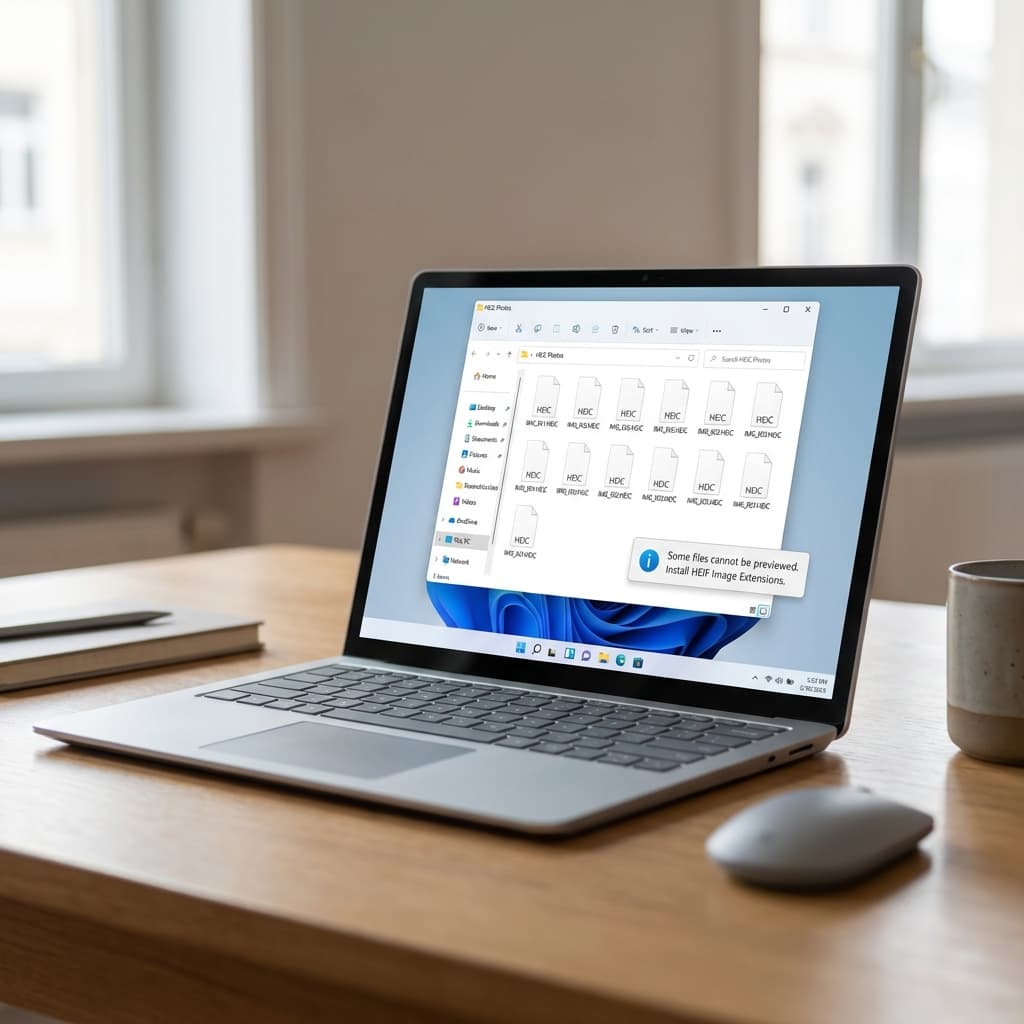
It is a scenario playing out in millions of homes right now. You return from a vacation, plug your iPhone into your Windows PC, and drag over a thousand photos. You are expecting to see a folder full of memories. Instead, you are greeted by a sea of generic white icons.
You double-click one, hoping for the best. The Photos app launches, thinks for a second, and then delivers the bad news: 'The HEVC Video Extension is required to display this file.'
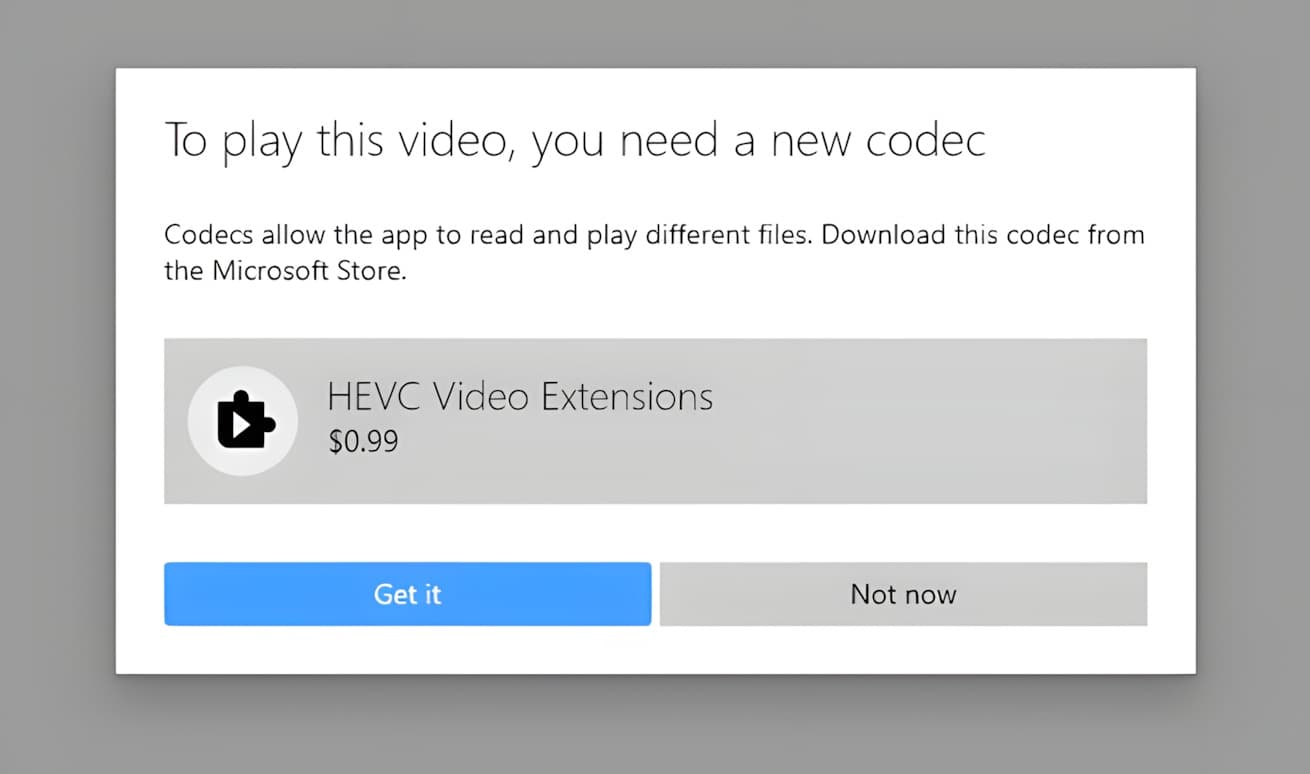
Then, the ultimate insult: a blue link appears telling you to "Download and install it now." When you click it, the Microsoft Store opens and asks you to pay $0.99. It feels like a hidden tax on your own photos.
🚫 Stop! Don't pay the $0.99.
You do not need to pull out your credit card. This guide covers five different ways to open HEIC files on Windows 10 and 11 for free. We will focus on methods that respect your privacy—meaning no uploading your family photos to random cloud servers.
Why Windows Can't Read Your iPhone Photos
Before we fix it, it helps to know why this is happening. It isn't a bug; it's a business decision.
In 2017, Apple switched the default camera format on iOS from JPEG to HEIC (High Efficiency Image Container). They did this for a good reason: HEIC files are about 50% smaller than JPEGs with better visual quality. It’s how your phone can hold thousands of 4K photos without running out of space.
However, the technology inside HEIC (called HEVC) is patented. For Microsoft to include support for it in Windows, they would have to pay a licensing fee for every single copy of Windows they sell. With billions of Windows users, that bill would be massive.
So, Microsoft made a choice. They removed the decoder from the free version of Windows and put it in the Store as a paid add-on. They passed the cost to you.
Method 1: The Instant Browser Viewer (No Codec Required)
If you just need to see a photo right now—maybe a contract, a receipt, or a specific memory—you don't need to install system software. You can use your web browser.
Most online converters are dangerous for privacy. They ask you to upload your file to their server, they process it, and then you download it back. You should never do this with sensitive personal photos.
Instead, use a Local-Mode Viewer like the one we built here at OpenHEIC. It uses a technology called WebAssembly to decode the image inside Chrome or Edge. The file never leaves your computer.
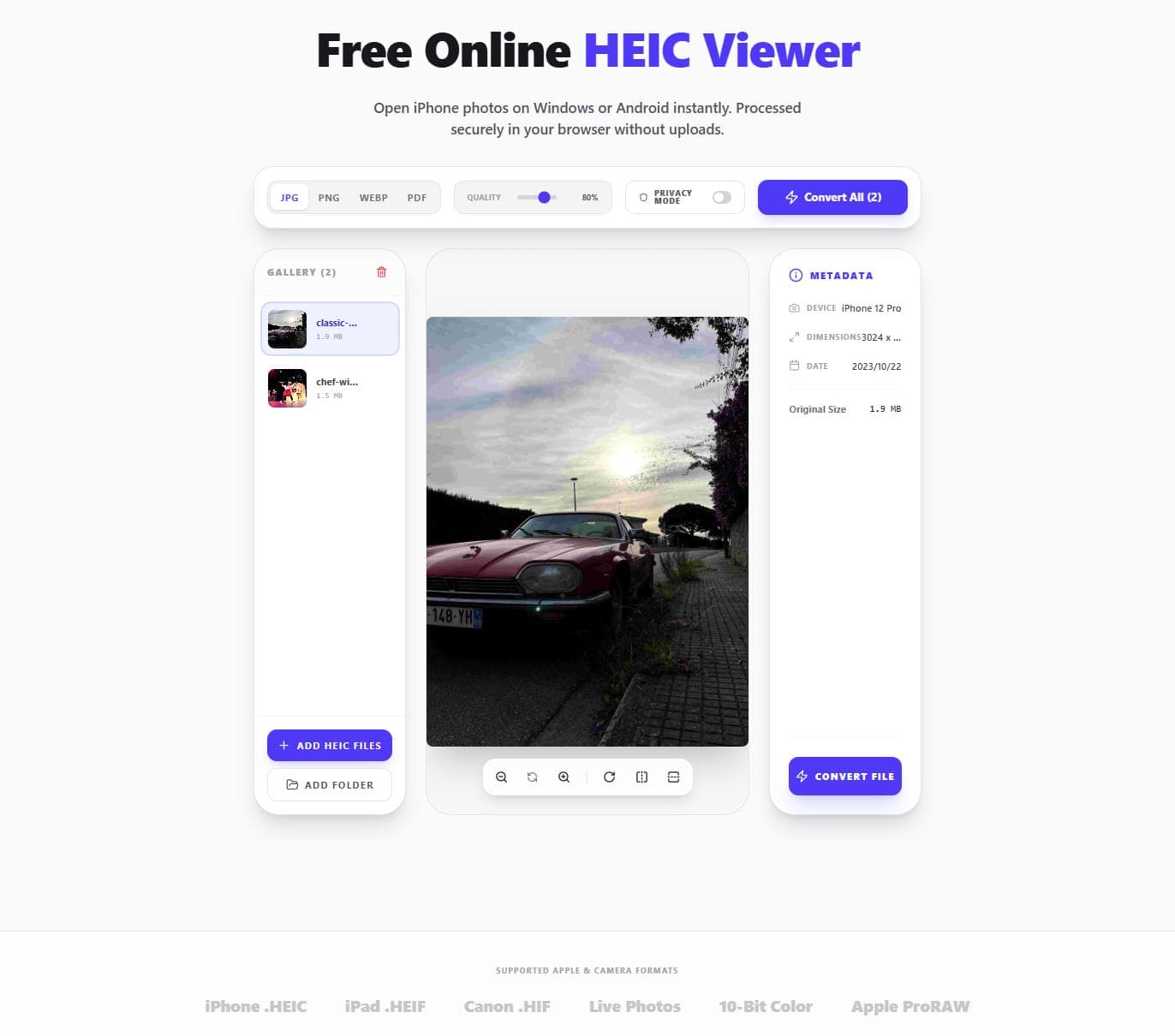
How to view HEIC without installing anything:
Scroll to the top of this page (or open OpenHEIC.com in a new tab).
Drag your HEIC file directly into the blue box.
The image will open instantly.
If you need to share it, click 'Save as JPG' to make it compatible forever.
This is the preferred method for users on restricted work computers (like Human Resources or Legal professionals) where you aren't allowed to install software.
Method 2: Get the Official Codec for Free (The 'Manufacturer' Loophole)
If you want to see thumbnails in Windows Explorer and open files in the native Photos app, you must have the HEVC extension installed. But you don't have to buy the $0.99 consumer version.
There is a second, hidden version of the extension on the Microsoft Store called "HEVC Video Extensions from Device Manufacturer". It is identical to the paid version, but it is intended for big companies (like Dell or HP) to pre-install on laptops. Because it is for manufacturers, it is free. Microsoft hides it from search results, but you can still force it to install.
Here are two ways to get it:
Option A: Using the Command Line (Winget)
Windows 10 and 11 come with a package manager called 'winget'. We can ask it to download the specific Manufacturer ID directly.
Steps to install via Command Prompt:
Right-click your Start button and select Terminal (Admin) or PowerShell (Admin).
Copy and paste this exact command: winget install --id 9n4wgh0z6vhq --source msstore
Press Enter.
If you see a licensing agreement, type Y and press Enter.
Wait for the 'Successfully installed' message.
Once finished, restart your computer. Your HEIC files should now have thumbnails, and they should open in the Photos app.
Option B: The Store Generator (If Command Line Fails)
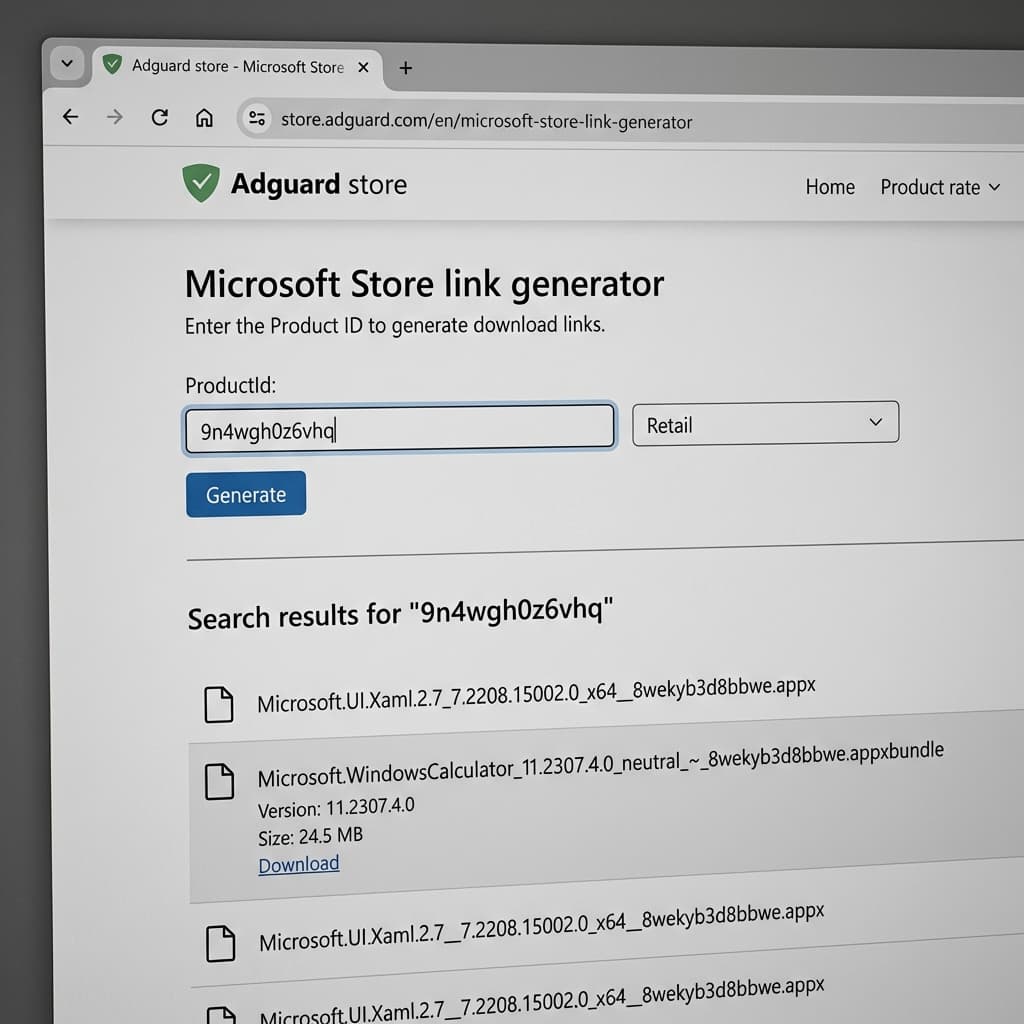
Sometimes Microsoft blocks the command line method. If that happens, we can grab the installer file (.appxbundle) directly from Microsoft's server.
How to download the installer manually:
Go to the Adguard Store website (a trusted tool for IT admins).
Set the dropdown menu on the left to ProductId.
Paste this ID into the search box: 9n4wgh0z6vhq
Click the checkbox button to search.
Look for the file ending in .appxbundle. It will be roughly 10MB to 30MB.
Download that file and double-click it to install.
Method 3: Use a Better Photo Viewer (CopyTrans & ImageGlass)
Let's be honest: The Windows Photos app isn't great. It's slow, and it crashes. Many professionals prefer third-party tools that have their own built-in decoders. These tools don't care about Windows codecs—they just work.
1. CopyTrans HEIC (The Thumbnail Fixer)
CopyTrans HEIC is a plugin for Windows Explorer. It doesn't have its own app window; instead, it teaches Windows how to create thumbnails for HEIC files. It also allows you to right-click a file and select "Convert to JPEG with CopyTrans". It is free for personal use.
2. ImageGlass (The Fast Viewer)
If you want a lightweight, open-source viewer that opens instantly, ImageGlass is a community favorite. It uses a library called Magick.NET to read almost any format (HEIC, WEBP, AVIF) without needing extra installations.
3. XnView MP (The Power User Choice)
For people managing thousands of photos, XnView MP is the gold standard. It allows for batch renaming, metadata editing, and sorting. It has native HEIC support built-in, so it works even on a completely locked-down corporate laptop.
Method 4: Batch Converting (When you need JPGs)
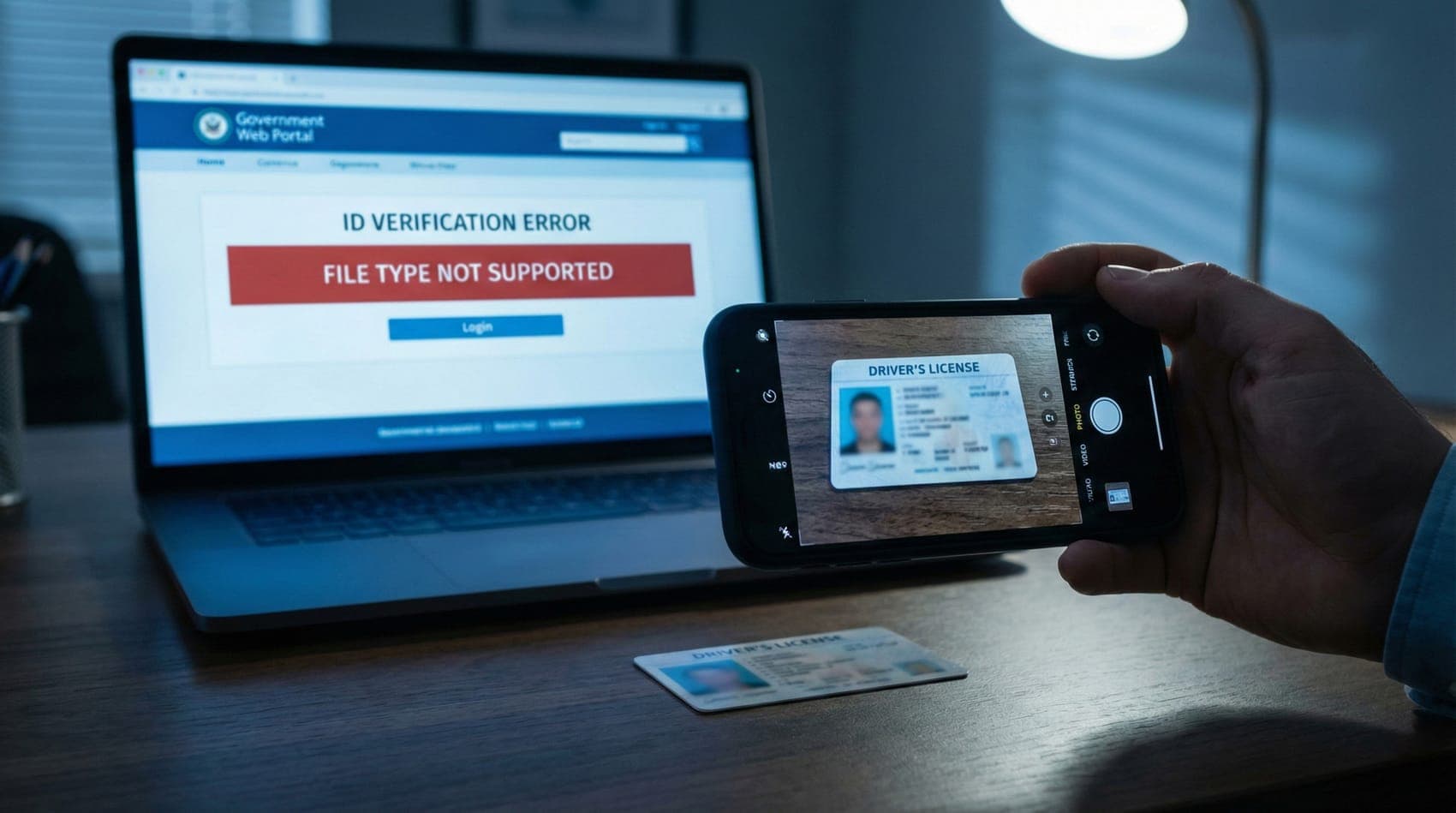
Viewing is one thing, but sharing is another. If you try to email a HEIC file to an Android user or upload it to a government portal (like ID.me or a Visa application), it will be rejected.
In these cases, you need to convert the file format. Here is the best tool for each scenario:
Which Conversion Tool Should You Use?
| Your Goal | Recommended Tool | Why? |
|---|---|---|
| Sharing on Social Media | HEIC to JPG | Max compatibility, small file size. |
| Editing in Photoshop | HEIC to PNG | Lossless quality, preserves transparency. |
| Uploading ID Documents | HEIC to PDF | Standard for Govt/Banking apps. |
| Website Speed / SEO | HEIC to WebP | Google's preferred web format. |
1. For General Sharing: Convert to JPG
JPG is the universal language of images. If you are sending photos to grandma or submitting a homework assignment, use this. Our converter handles batch processing, so you can do 50 photos at once.
2. For Designers & Editors: Convert to PNG
HEIC uses lossy compression. If you convert to JPG, you compress it again (generating 'artifacts'). If you plan to edit the photo in Photoshop, convert it to PNG. It creates a larger file, but it preserves every pixel perfectly.
3. For Documents (ID Cards): Convert to PDF
Insurance adjusters and Real Estate agents often face this. You take a photo of a document, but the company portal only accepts PDF. Instead of using a sketchy scanner app, just drop your HEIC photo into our PDF tool to flatten it into a standard document format.
Method 5: Stop the Problem at the Source
If you are tired of dealing with conversions and codecs, you can simply tell your iPhone to stop using HEIC. There is a setting that forces the camera to save photos as JPEGs automatically.
⚠️ The Trade-off
Changing this setting will double the storage space your photos use. If you have a 64GB or 128GB iPhone, you will run out of space much faster.
How to switch iPhone back to JPEG:
On your iPhone, go to Settings.
Scroll down to Camera.
Tap on Formats.
Switch from 'High Efficiency' to 'Most Compatible'.
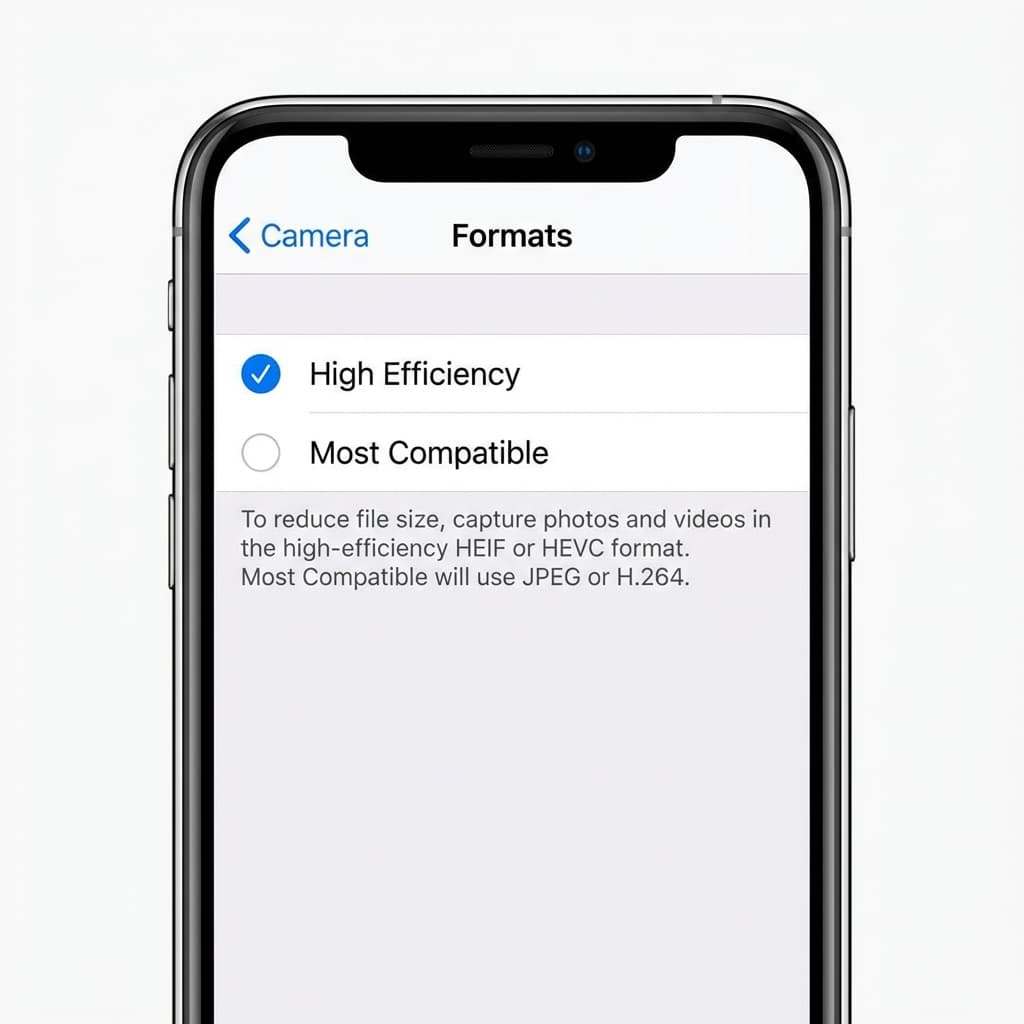
From this moment on, every photo you take will be a standard JPEG. It won't fix your old photos (you still need a converter for those), but it stops new ones from being incompatible.
Frequently Asked Questions
Q: Why do my photos have a grey box at the bottom?
This is a common 'transfer corruption' error. When you plug your iPhone into a PC, it tries to convert HEIC to JPG in real-time. If the CPU gets overwhelmed or the cable is bumped, the data stream cuts off, leaving the bottom half of the image grey.
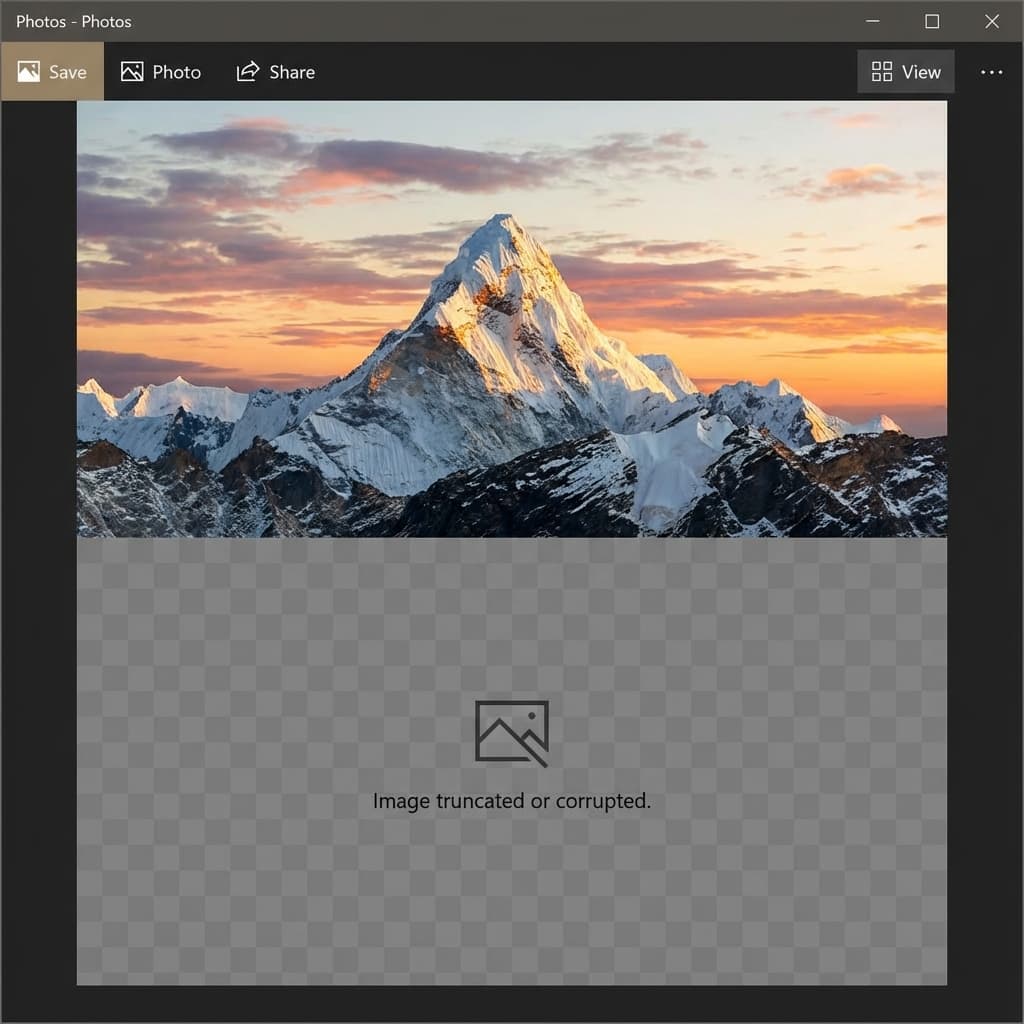
The fix: Use the 'Keep Originals' setting in iOS Photos settings before transferring.
Q: Is HEIC better than JPG?
Technically, yes. It supports 16-bit color (vs 8-bit for JPG) and is 50% smaller. However, JPG is better for compatibility. A better file is useless if you can't open it.
Q: Can I use Google Photos to view HEIC?
Yes. If you back up your photos to Google Photos, you can view them in any browser (Chrome/Edge) because Google converts them for the web view. However, if you download them back to your desktop, you might still get the original HEIC file, putting you back at square one.
Summary
The 'HEIC on Windows' problem is annoying, but it is easily solvable without spending money. For most users, the Browser-Based Viewer is the fastest, safest solution for quick viewing. For power users, forcing the installation of the Device Manufacturer Codec restores native functionality.
Whichever path you choose, remember: You do not need to pay the $0.99.